
Customize your workflow with Custom Fields
| NOTE: This applies to Requisition Forms and Processes that are not generated with DATA OBJECTS |
To view a step-by-step of this process, please view the following video:
The FORM Type allows you to create any kind of field you may need.
For each field you can select a different value type. This is like creating your own database!
These are the options available:

- Text field - a plain text field, limited to 256 characters
- Text Area field - ideal for Open answers. Is limited to 5000 characters but it can be easily unlocked.
- Email - a field with email syntax
- Email Calculator - this feature is available only in certain regions, it allows you to generate automatically an email address from an algorithm.
- Number
- Date field
- Password - this field will be protected with a "privacy" view
- Currency - it allows you to choose between different currencies and it will automatically apply the right format
- Select - this field allows you to choose between
- CUSTOM SELECTION - you create the list of options
- SELECT from Data Object or Virtus Flow system tables
- Multi-select - is the perfect solution when you need to create "address" type field and you want to automatically request the State when someone select a County with multi-states.
- Connector - see API Integration article
- Checkbox
- Yes /No
- Associate Attribute
- Files - this field creates an UPLOAD DOCUMENT box where you can drag-and-drop or select documents to upload.
- Generate Excel- generate an Excel spreadsheet
- eSign- connects with an eSign like DocuSign
- Ldap User (this feature is available only in certain regions, it allows you to generate automatically the LDAP user with an algorithm)
- Fiscal Code (this feature is available only in certain regions, it allows you to verify if the Fiscal Code is valid)
- Status - to manage different Status fields
- Period - similar to date but with intervals
- Team - select a Team of Users from the "TEAM table"
For each field you can manage R/W attributes. With the lock open you can Read and Write, with the lock closed it is a Read-Only field.
With the option Show Advanced Columns you can manage additional attributes like PRESET, CONSTRAINTS and VISIBILITY.
Additionally you can manage Mandatory, Non-Mandatory or Mandatory but not blocking fields.
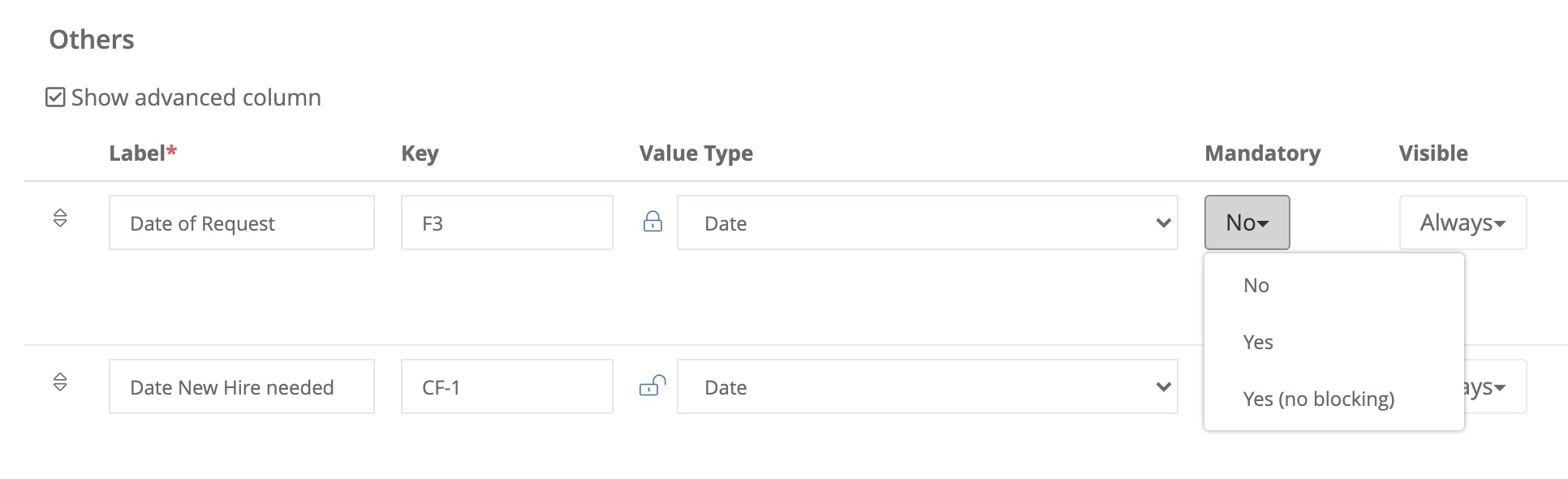
This third option allows you to identify a mandatory field as a no-blocking to allow users to finish their process in absence of that field. The workflow won't move forward till everything is completely filled out but.
To further customize your Form, visit the following:
Simple Approval Steps and Scripts
Comments
0 comments
Article is closed for comments.