
Sometimes we have a PDF that does not already have editable fields, what then?
In this article, we will show you how to create customizable dynamic fields on any PDF. In this example, we are using PDFescape.com, a free service, but you can use any service you would like, such as Adobe or anything else.
Editing Your PDF
First, upload the PDF to PDFescape.com. Next, choose the option Form Field in the top left.
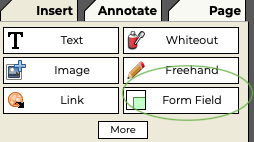 Then click to place your field and drag to size.
Once you have created each field needed for your form, right click on the field and go down to Object Properties. From there you can rename it to be easily recognizable (Name, Start Date, Position, etc.) for when you are mapping it in your workflow.

Then, when you save and upload to Virtus Flow, the newly named form fields will appear in the pdf section and you can now easily map them.

Checkboxes
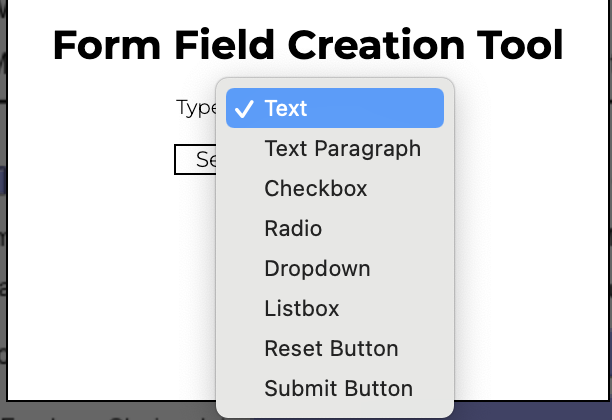
How do you add fields for checkboxes into the PDF? First you add the form field as you did with the other fields but instead of using Text, change the type to Checkbox. Then choose the Check type and be sure the Visible box is unchecked. Do that for all of the boxes needed and save to then upload to Virtus Flow.

Then change the Not Checked to Checked If... Then map the field =true. This will add a checkmark in the PDF when downloaded, if that field is checked in the Workflow itself.

Comments
0 comments
Article is closed for comments.