
How can you create tickets and track their progress? Especially when managing a team, this can be tricky but Virtus Flow makes it simple.
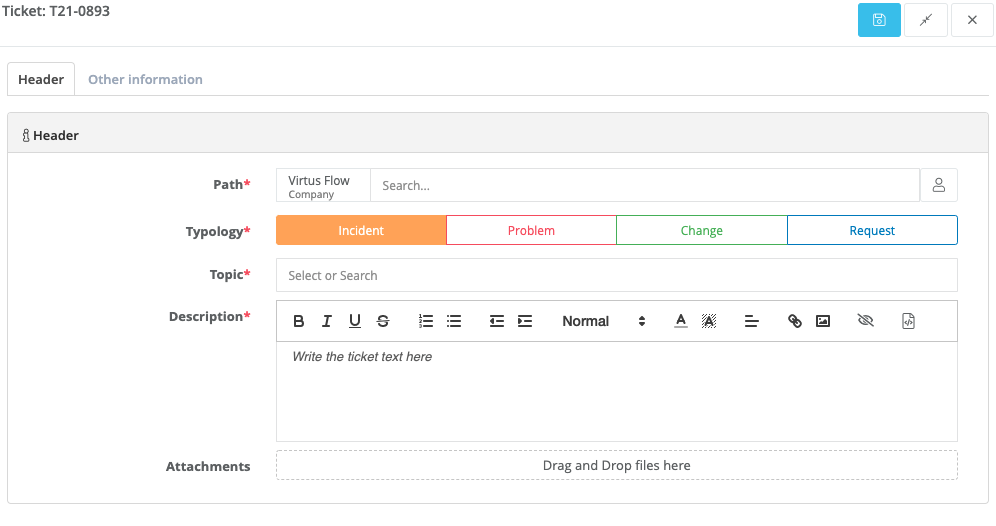
To learn how to create a ticket, view the video below or visit this page.
To view a step-by-step of this process, please view the following video:
Usually Tickets are covered by these situations so we pre-configured the system with a standard ITIL Framework based on:
- Incident
- Problem
- Change
- Request
You can always customize these labels by changing colors, adding new typologies, or simply editing the existing ones.
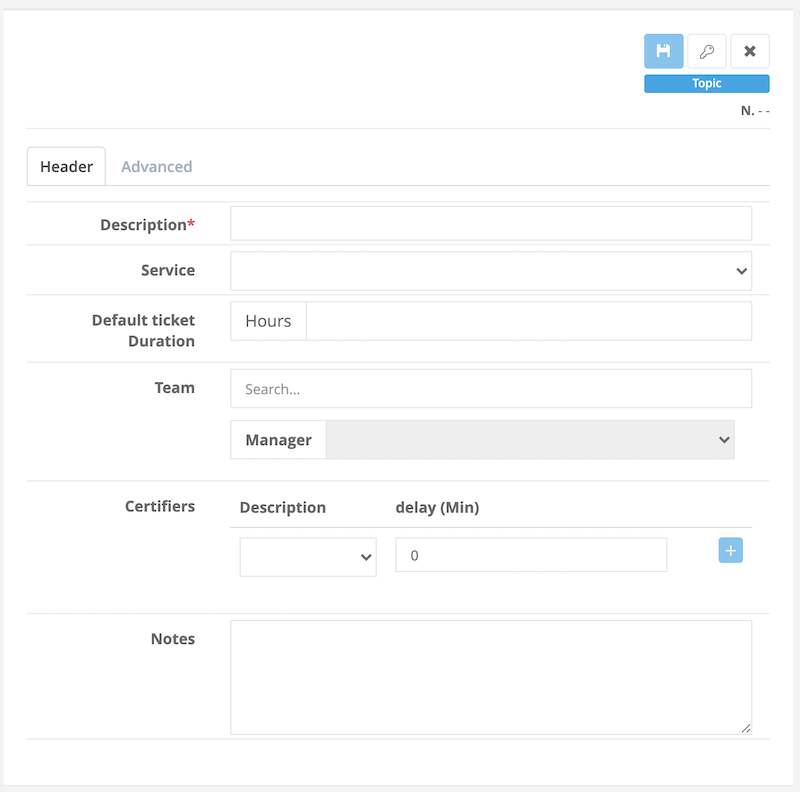
For each topic, you can configure a set of rules like:
- Team in charge of managing these topics (by default, it's visible only by Admin users)
- Team Manager - the manager in charge of the specific division
- Automatic time-reporting - you can set up a standard duration (for example, 30 minutes for topic "IT" and 60 minutes for topic "Finance"). This will help you to track the average resolution time and many other KPIs.
- ACL - You can control who can see every single topic. For more information, read this KB "External Users accessing Tickets."
- Ticket Certifier - this specific role allows you to add a team member as a "first-aid." Someone that can dispatch the ticket approving or rejecting it. This option is mainly used in large organizations or large teams.
A sub-topic is a sub-category linked to the Topic.
For example, you can have a generic topic "IT" with several sub-topics like:
- Lost password
- System Down
- Internet Down
- Not receiving email
- ...
The user will be guided during the process of opening a ticket. The system will ask a topic, and if sub-topics are available, he can choose one.
Managing Tickets
As for managing Tickets you can easily view them by going to Tickets> Grid. It will automatically go to the tickets assigned to you. Here you can see what type of issue it is, and the Status. If you're assigned, you can change the status from there by choosing the dropdown and picking a different status. You can also easily view who it's assigned to and who it was created by.

You can also view it by Company, Project, Activity, etc. and see an overview of anyone assigned a Ticket and whether they are finished or pending.

The Board view let's you see it a Kanban and drag and drop to change Status.

Tickets can also be viewed in Projects> Grid View.

Comments
0 comments
Article is closed for comments.