
How to set up your Ticketing Management System in few minutes
To view a step-by-step of this process, please view the following video:
Look for TICKETS on the Setup Page (see below)

FOR A QUICK CONFIGURATION PLEASE CONFIGURE TOPIC TABLE ADDING ALL THE TOPICS (categories) that you want to manage, assigning a user or a team for each topic.
Typologies
For a Basic Configuration, you can ignore typologies. We pre-configured the system with a standard ITIL Framework based on:
- Incident
- Problem
- Change
- Request
You can always customize these labels by changing colors, adding new typologies, or simply editing the existing ones.
Services
This section allows you to organize all your tickets following the concept of Departments or Services. It is a common practice for Enterprise Customers to manage all their tickets with a single platform. How can you segregate Facility Management Tickets from IT, HR, or other departments? One way is to create a list of Services. Each Service will include a list of topics and sub-topics (see below). We don't suggest this configuration for small companies since it increases the complexity of the platform.
Topic
Topics are the core of our Ticketing system.
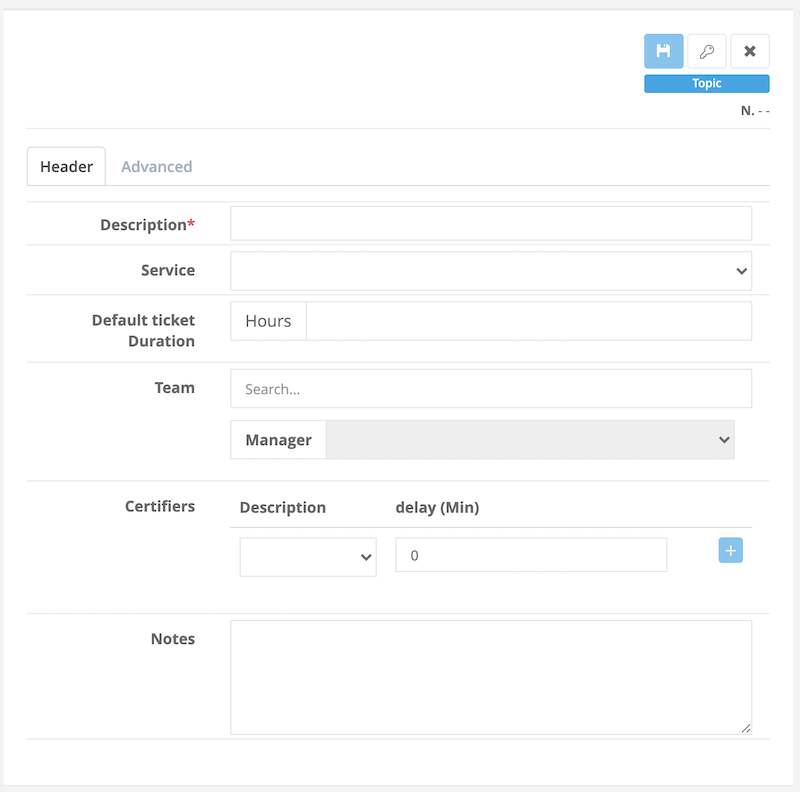
For each topic, you can configure a set of rules like:
- Team in charge of managing these topics (by default, it's visible only by Admin users)
- Team Manager - the manager in charge of the specific division
- Automatic time-reporting - you can set up a standard duration (for example, 30 minutes for topic "IT" and 60 minutes for topic "Finance"). This will help you to track the average resolution time and many other KPIs.
- ACL - You can control who can see every single topic. For more information, read this KB "External Users accessing Tickets."
- Ticket Certifier - this specific role allows you to add a team member as a "first-aid." Someone that can dispatch the ticket approving or rejecting it. This option is mainly used in large organizations or large teams.
|
NOTE: If you configured "Service Tables," you need to select a Service for each topic you create. |
Sub-Topic
A sub-topic is a sub-category linked to the Topic.
For example, you can have a generic topic "IT" with several sub-topics like:
- Lost password
- System Down
- Internet Down
- Not receiving email
- ...
The user will be guided during the process of opening a ticket. The system will ask a topic, and if sub-topics are available, he can choose one.
| Note: Sub-topic cannot be assigned to a specific group of people since they follow the first level hierarchy: topics. |
Comments
0 comments
Article is closed for comments.