
To add a list of contacts at once you can use the Export/Import buttons in the top right of your "Contacts" screen.
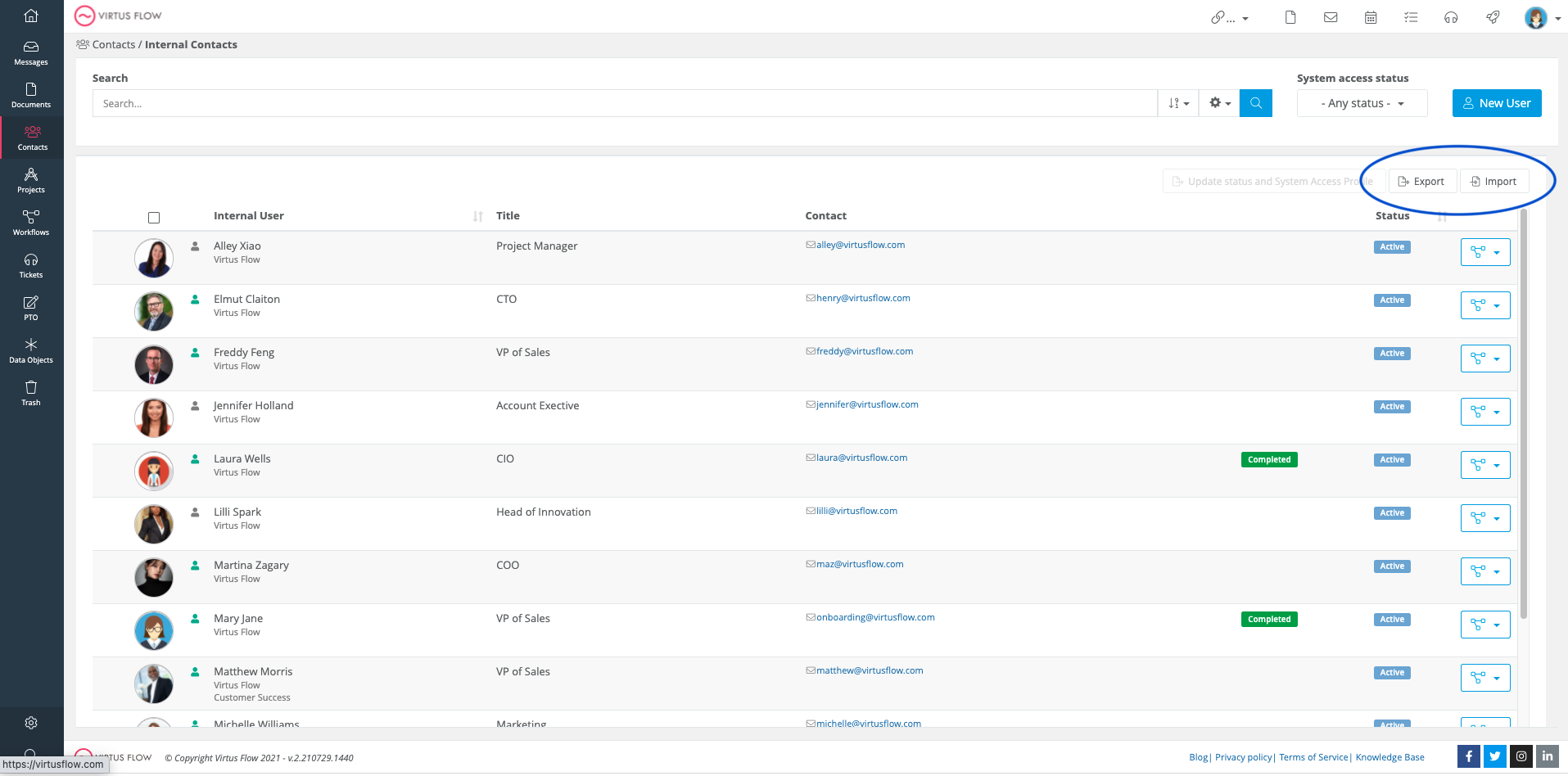
Before you can import your list of contacts, you must first Export the standard Excel file we provide. Click Export, then All. Once you have the standard format, you can then edit it to fit your needs. You can also add any columns that you may need corresponding to those created in Virtus Flow. Then, add all of the contacts into the file and save.

After it has been saved, return to the "Contacts" page and choose the "Import" option. A pop-up box will appear, directing you to drag and drop your file. You can choose if all the values are allowed, for example, "email" and then, Import. This will allow all of the contacts to be imported into your system.
| Note: Subsequent imports of a single export file can lead to misalignment, duplication or loss of data. If you modify or add the same export file, use the unique correlation field in Excel as the identifier (primary key) of the single record and allow the system to recognize and link the import data with the data already present in the system. |
To see a step-by-step of this process, see the following video:
To learn more ways to add contacts, see the links below:
Adding a New User
CSV Contact Uploads
Comments
0 comments
Article is closed for comments.