
Adding individual contacts is very simple.
To add a new user, use the New User button in the top right of your screen.
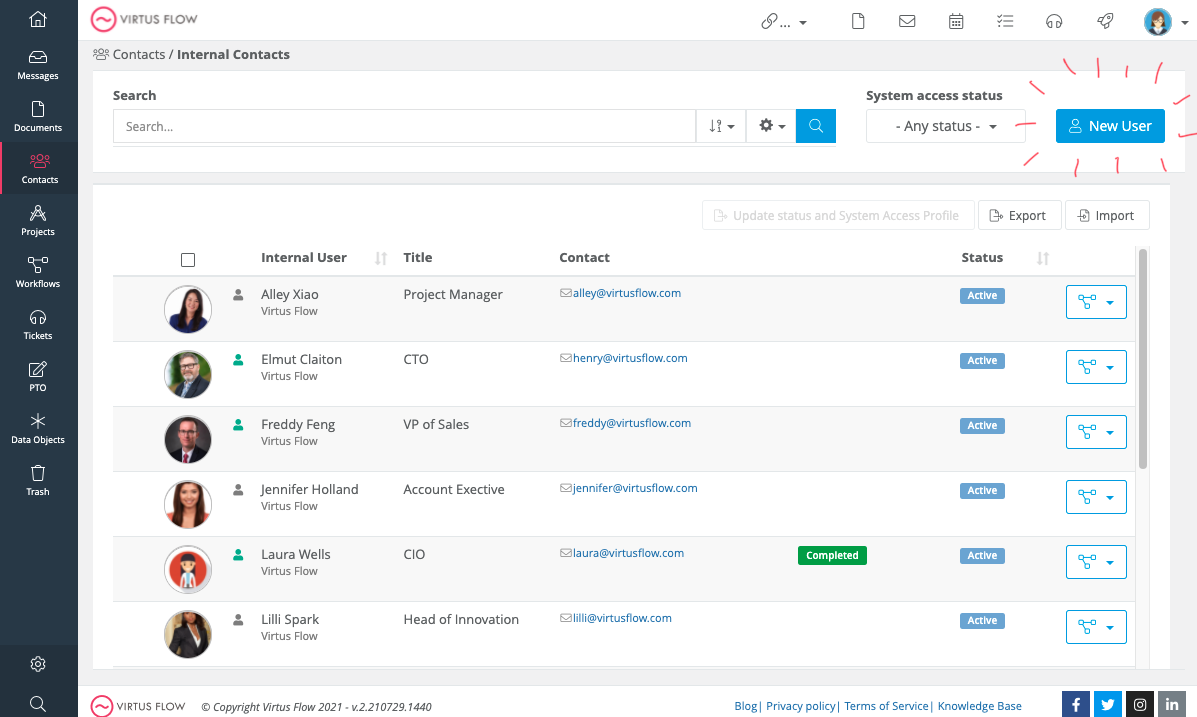
This will open a section to input the data for a new user (first name, last name, company, etc.), then save. Once saved, look under System Access Profile > Activate Profile and be sure to choose "Enabled". It will ask you to input a username, an email address, and choose a license (either User or Administrator).
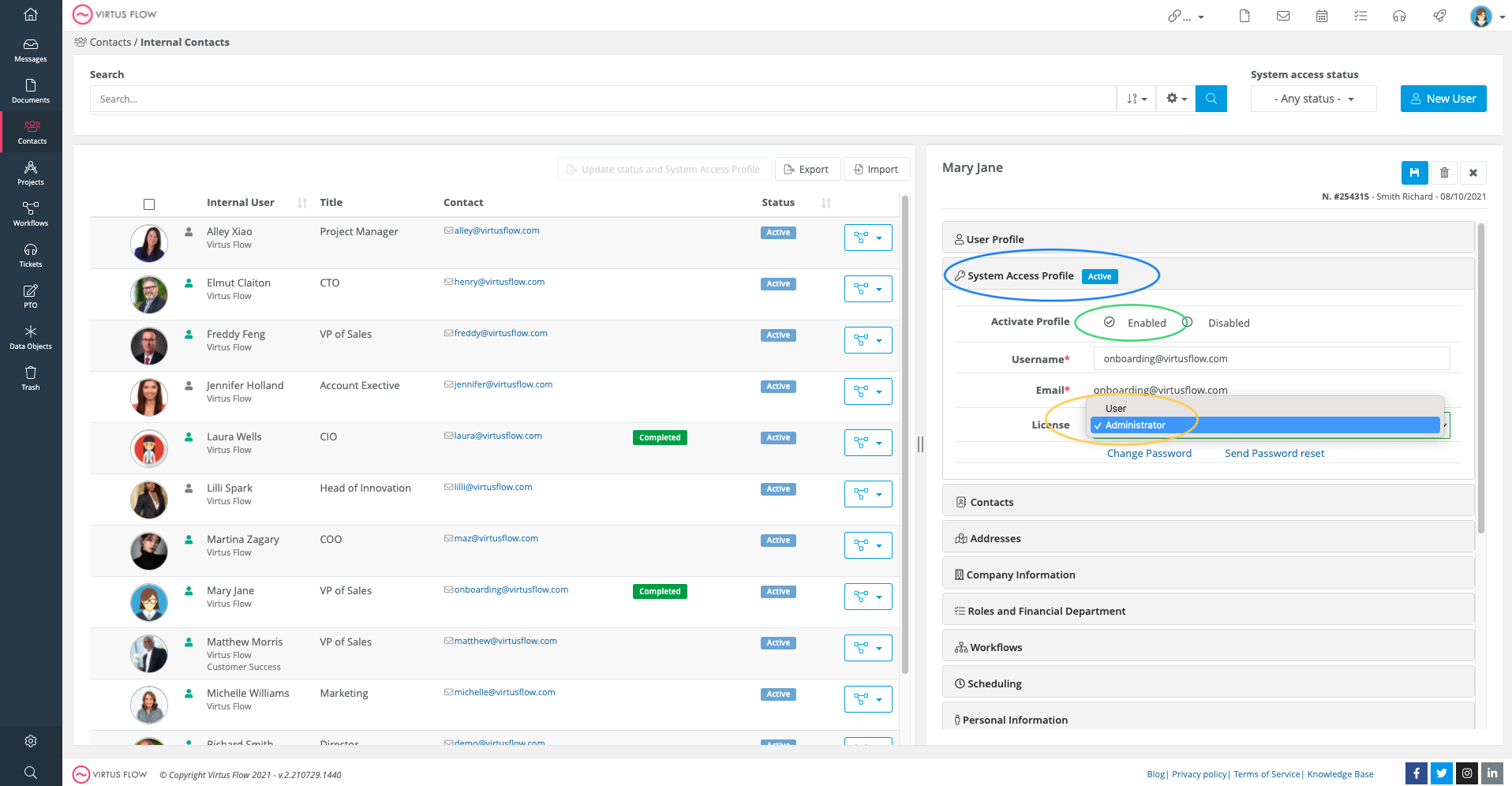
If a license has not been assigned, the account will remain inactive (indicated by a gray logo next to their name). If its green, you're good to go. Don't forget to save!
To see a step-by-step of this process, see the following video:
Comments
0 comments
Article is closed for comments.