
When creating a DocuSign workflow, as always, you start in the Workflows> Builder. Then choose your folder and create a new form. It will need to be assigned a name and a folder.

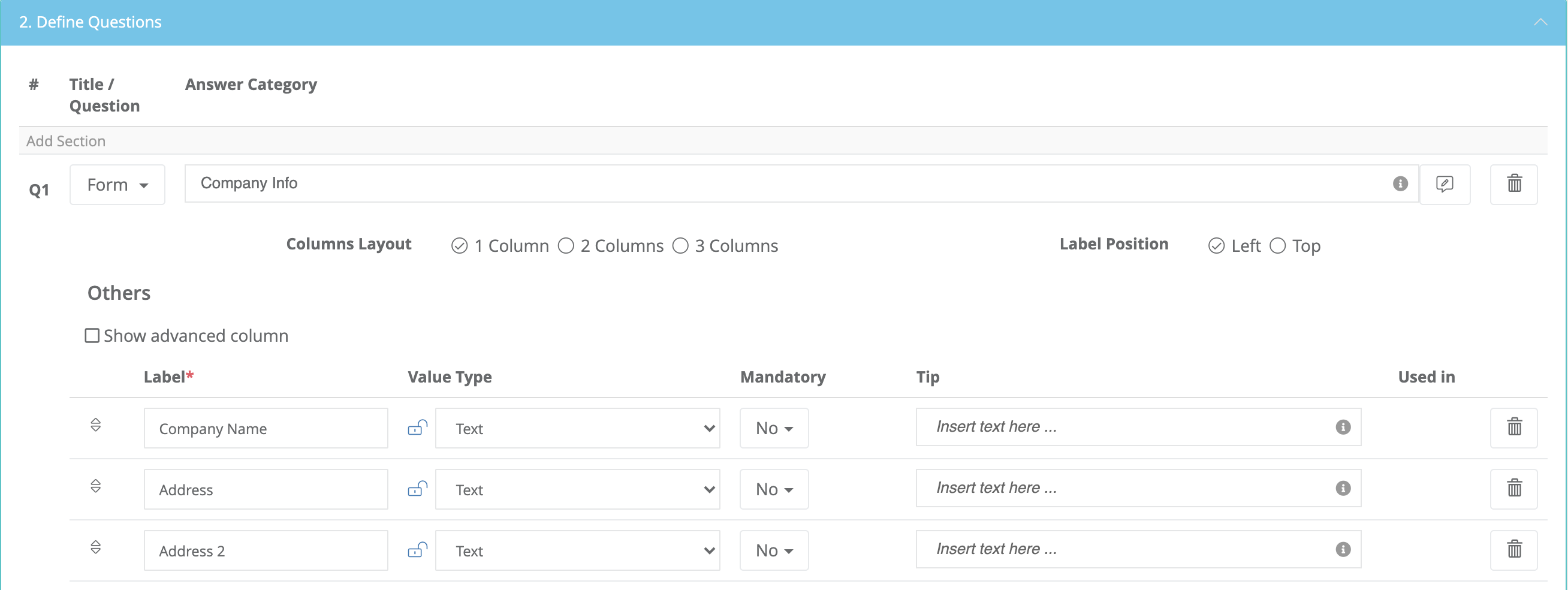
To continue the process, the next step is defining questions. It will also be a Form, for example, you might call it Company Info. You will set all the information needed, like Company Name, Address, etc.
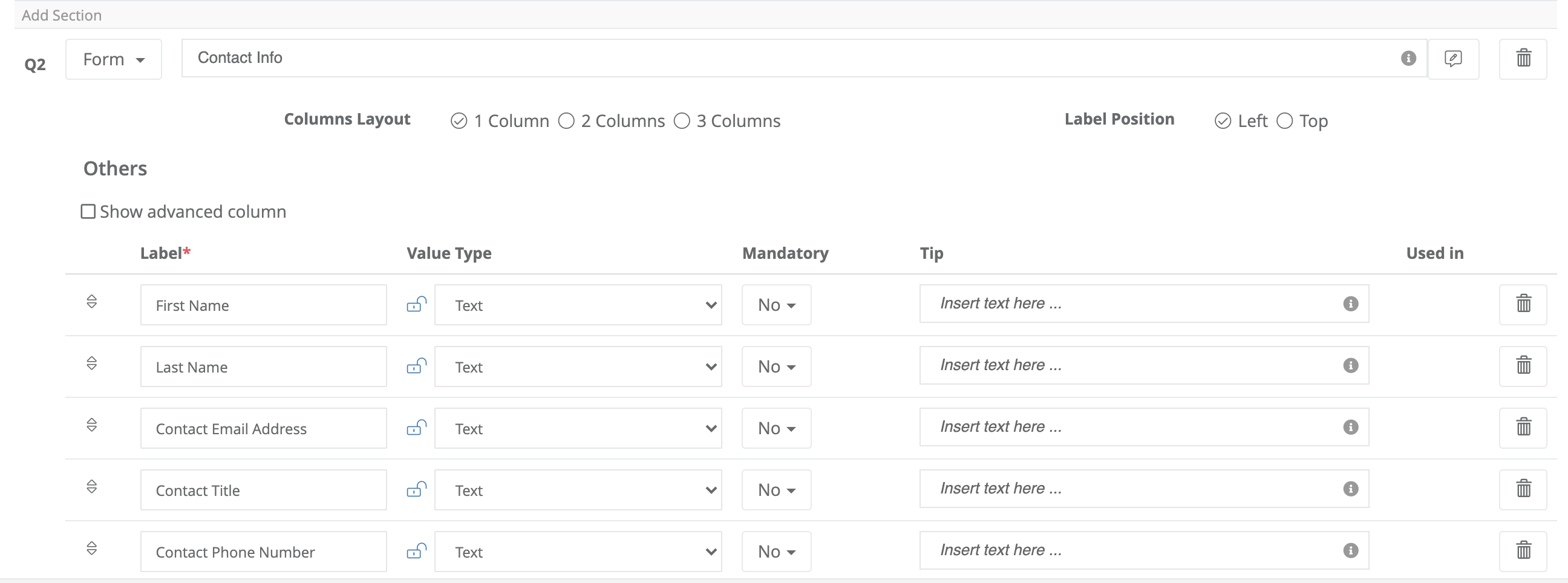
Add a second question and continue. This one, also a Form, maybe named "Contact Info". This will include First Name, Last Name, Email Address, etc.
Then you will use a DOCX format to upload the document. When you choose this format, it will give you a section to drag and drop your document into. This can be a Word document containing your document to be signed. (MSA, NDA, etc.) When this document is uploaded, it will pull the information from the other questions and place them where the placeholders are in your document.

Next, you'll choose another Form and use the value type of eSign.

It will show who will sign, you can decide in which order, or if there is only one. You can also customize the email message that will accompany the documents.

Then connect all the steps and Test. This will launch the Workflow, allowing you to see what the person using it will see. You can then fill it out as they would and follow as directed.


From here, it will generate the document, for example, an MSA. You can double click on the link to view the generated document. From here, you will create an Envelope. If you send an Envelope, you will be charged, per your agreement with Virtus Flow and DocuSign. You may, however, send a DEMO of the Documents to sign, assuring you that all is correct without paying for an Envelope.
| NOTE: To DEMO signing these documents, you must first create a Developer Account with DocuSign. This is no extra charge and can be done using the same email address you already use with DocuSign. Creating that account will allow you to DEMO using the RED button shown below. Using the RED DEMO button allows you to ensure all is correct without paying for an Envelope. |

Once all has been tested to your liking, you may send the documents using the BLUE button.
| NOTE: Each time you send documents using DocuSign, Demo or not, they will require you to sign in using your DocuSign Account credentials. |
Comments
0 comments
Article is closed for comments.